
Overview
Two-factor authentication (2FA) adds an essential layer of protection to your account. Learn how to connect Google Authenticator or Authy to secure every login and withdrawal.
How to enable 2FA (Authenticator app)
Two-Factor Authentication (2FA) adds an extra security layer to your Bitval account by requiring a time-based code from your Authenticator app at each login or withdrawal.
Recommended during signup:
After you verify your email via the one-time password (OTP) during sign-up, you’ll see a prompt suggesting you enable 2FA for better protection. You can complete it right away or skip and do it later from your account settings.
To enable 2FA anytime:
Go to Account → Security → Two-Factor Authentication.
Click Enable 2FA and scan the displayed QR code using Google Authenticator, Authy or another app of your choice.
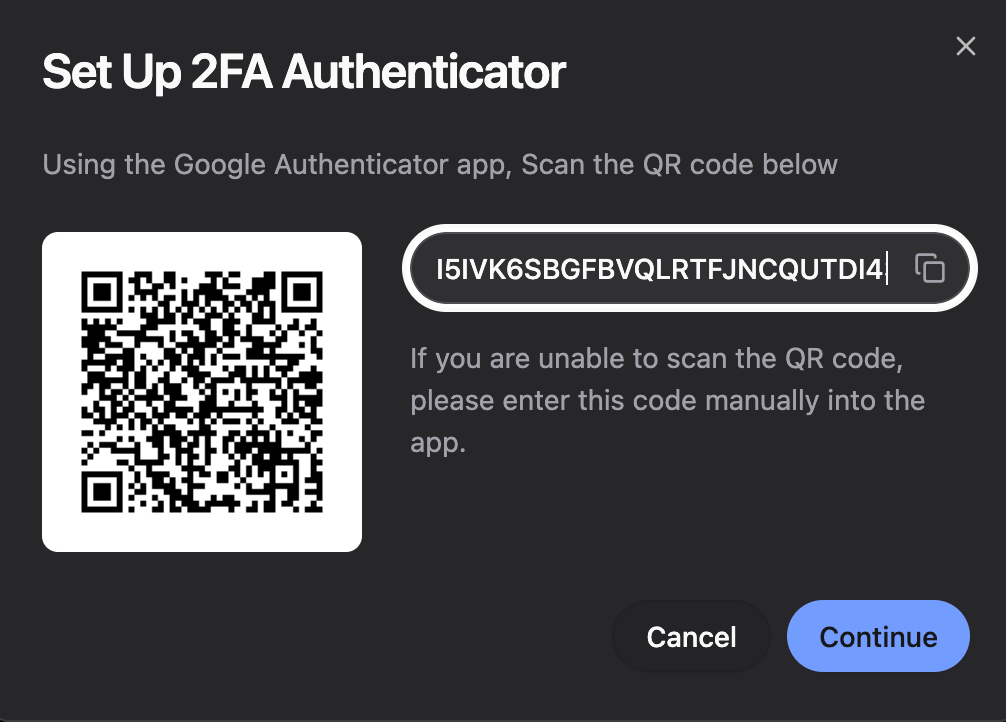
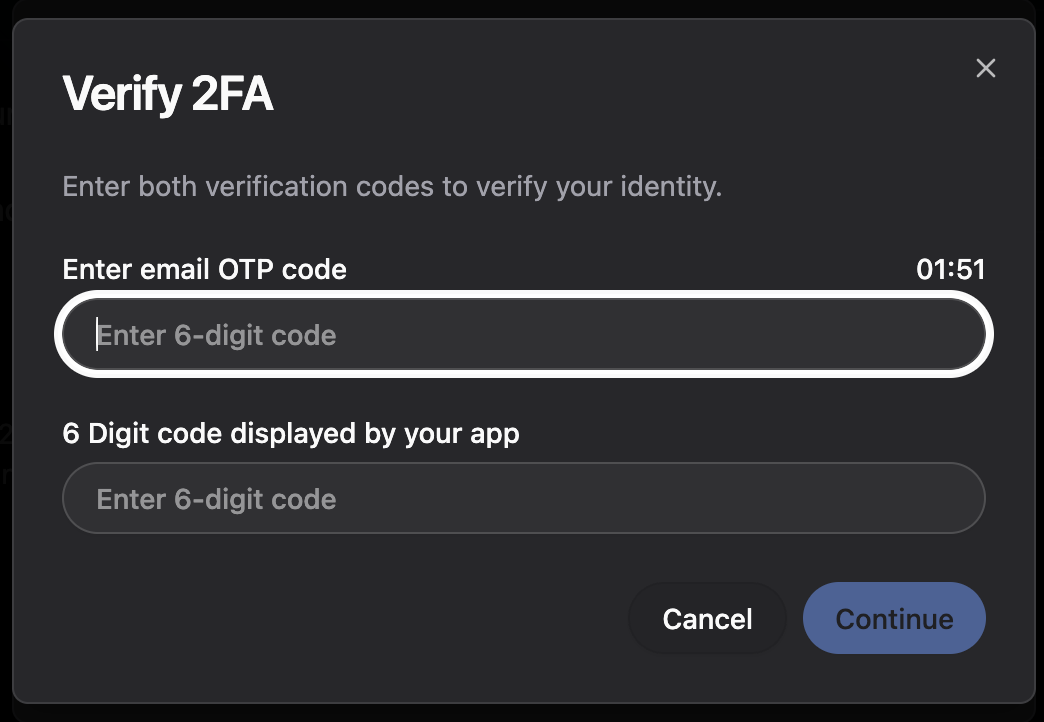
OTP (One Time Password) code will be sent to your email. Enter the 6-digit code from your email and the 6-digit code from your Authenticator app to confirm setup.
Save your backup key in a safe place in case you change or lose your phone.
Once enabled, Bitval will request a 2FA code each time you log in or withdraw.
Tip: We strongly recommend enabling 2FA as soon as you create your account — it’s your best safeguard against unauthorized access.